
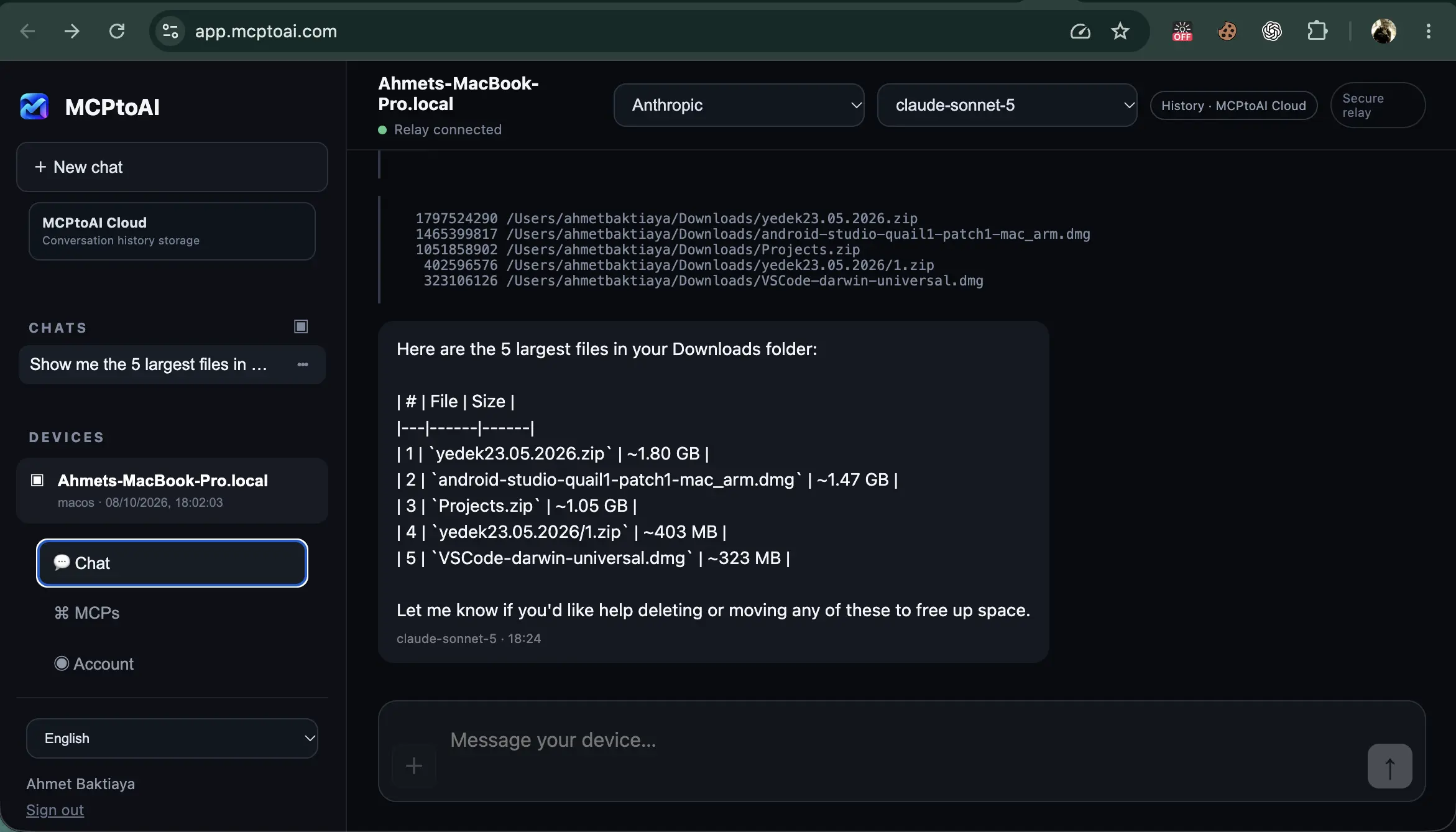
Chat from the web, keep execution on your device
Continue the same conversation from a browser or phone while the paired device remains in control of local tools.
The AI workspace for your computer and tools
MCPtoAI connects the AI models you choose to your own computer and the MCP services you use. Work from any browser or your phone, switch models without losing the conversation, and approve sensitive actions before they happen.
Available for macOS 13+ on Apple silicon, Windows 10+ (x64), Linux CLI and Docker.
From setup and device pairing to provider selection, MCP connections and a real AI → device tool call.
Real screens from MCPtoAI Web and Desktop — the same controls you use to choose models, connect tools and decide what can run.
Continue the same conversation from a browser or phone while the paired device remains in control of local tools.
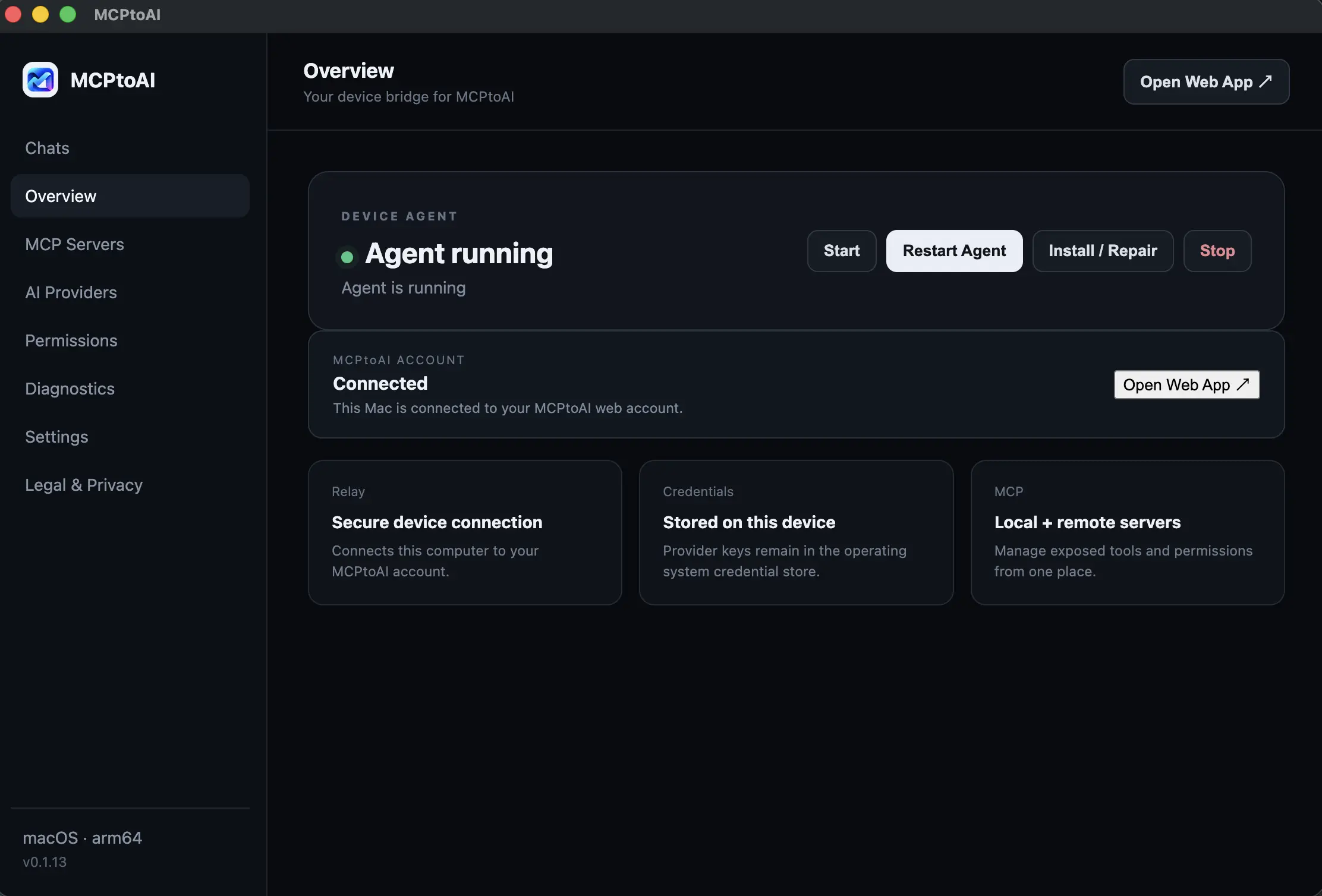
See device status at a glance and manage local capabilities without giving a remote session unrestricted access.
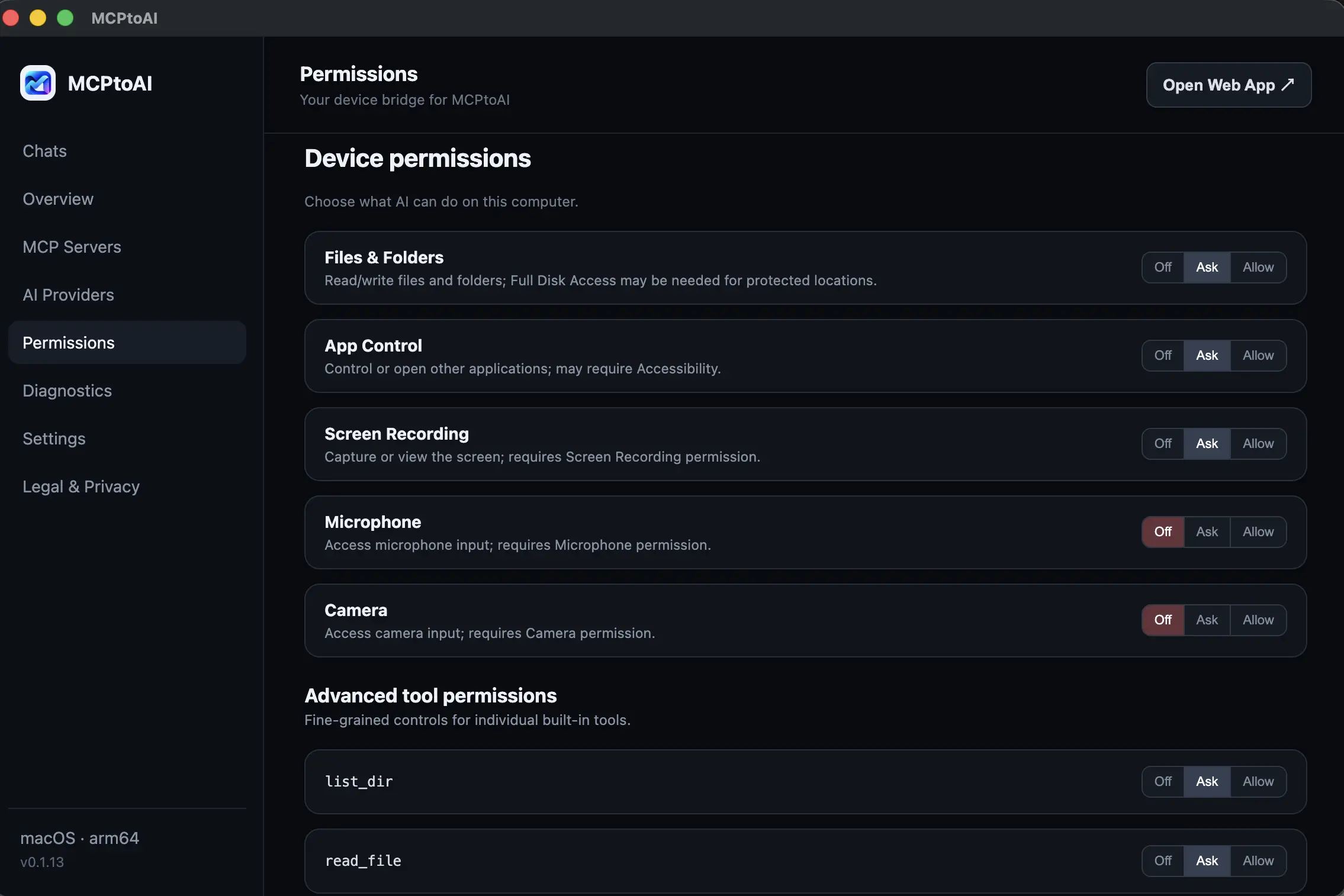
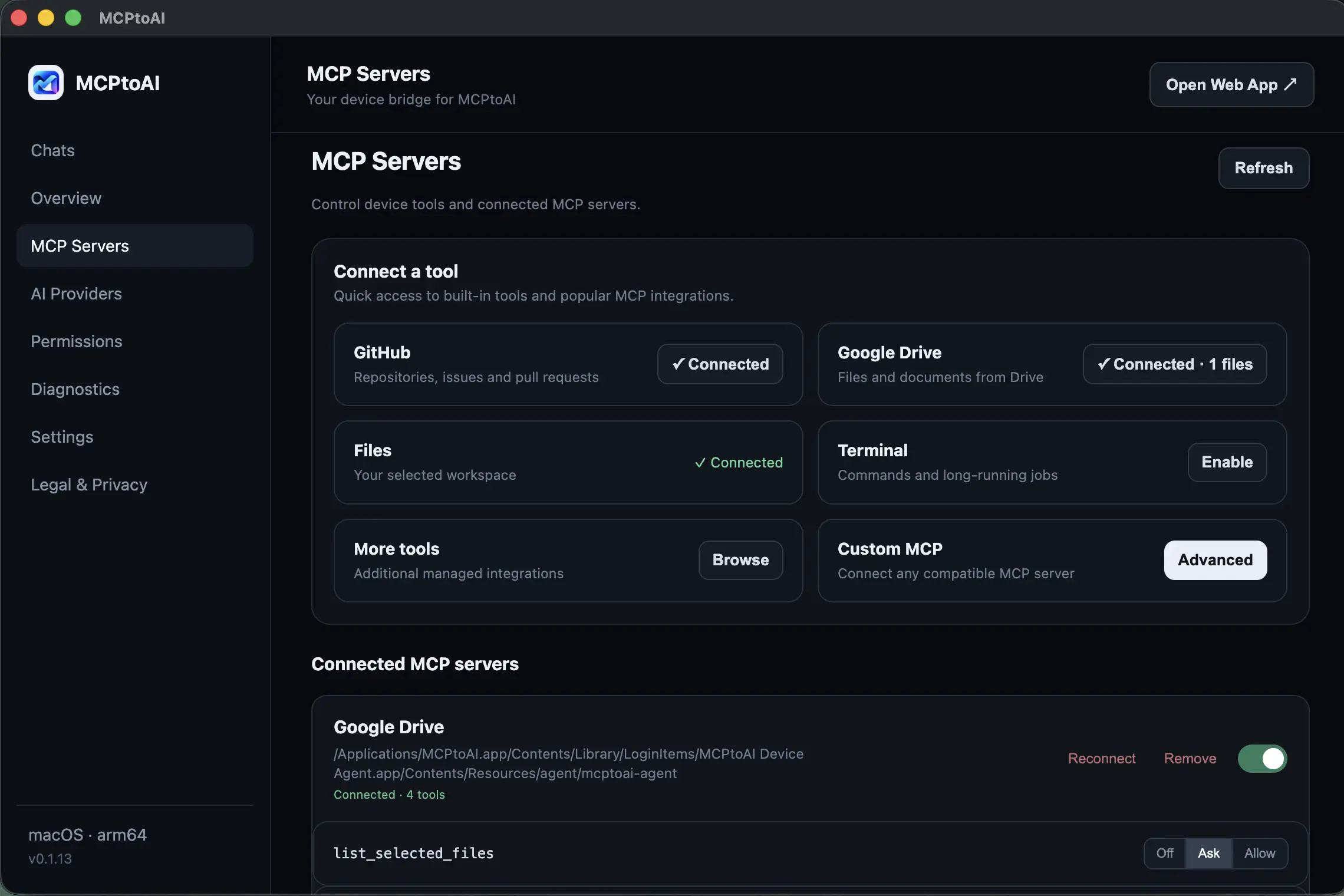
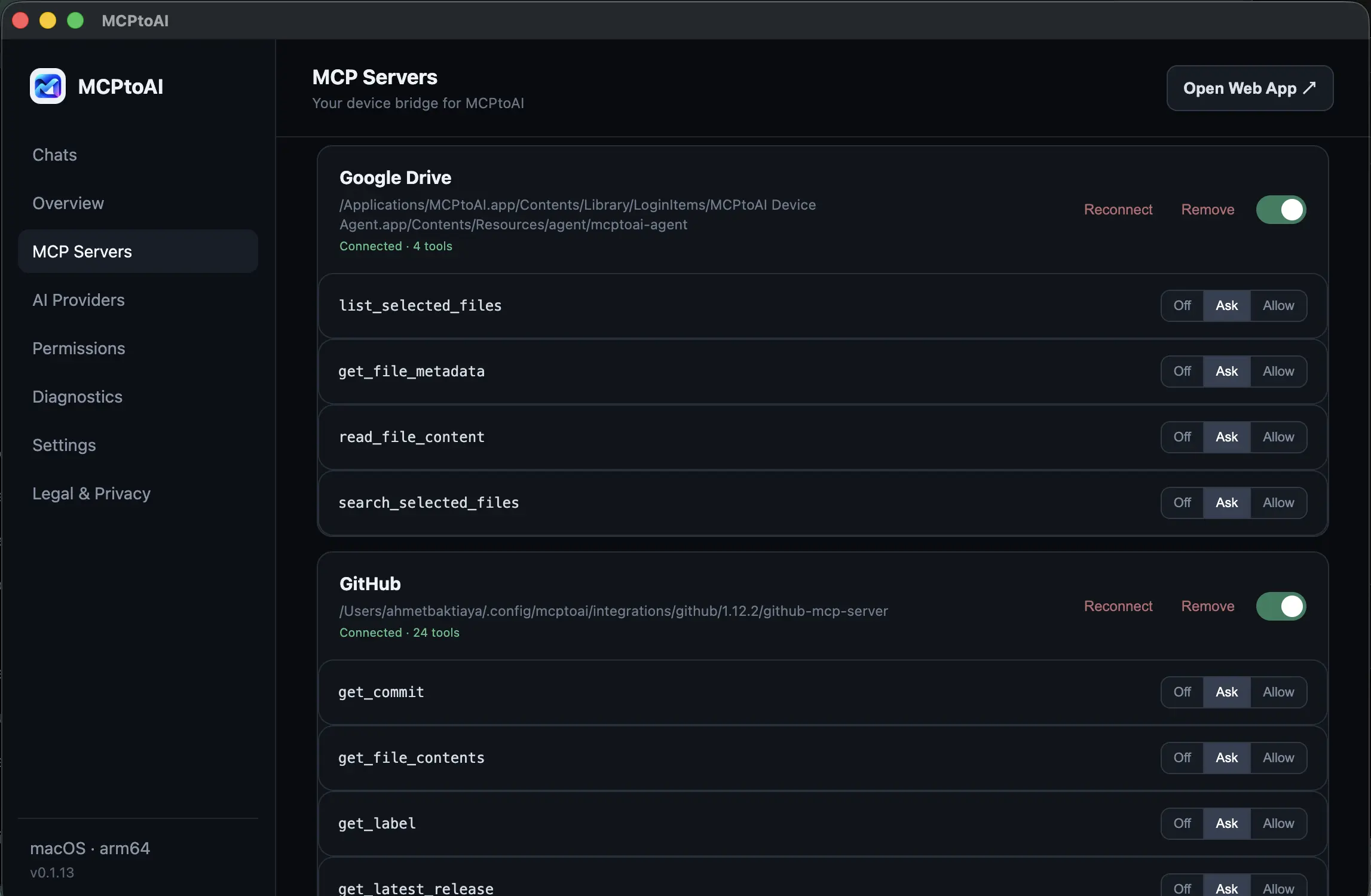
Add MCP servers once, inspect their tools and choose Off, Ask or Allow for each capability.
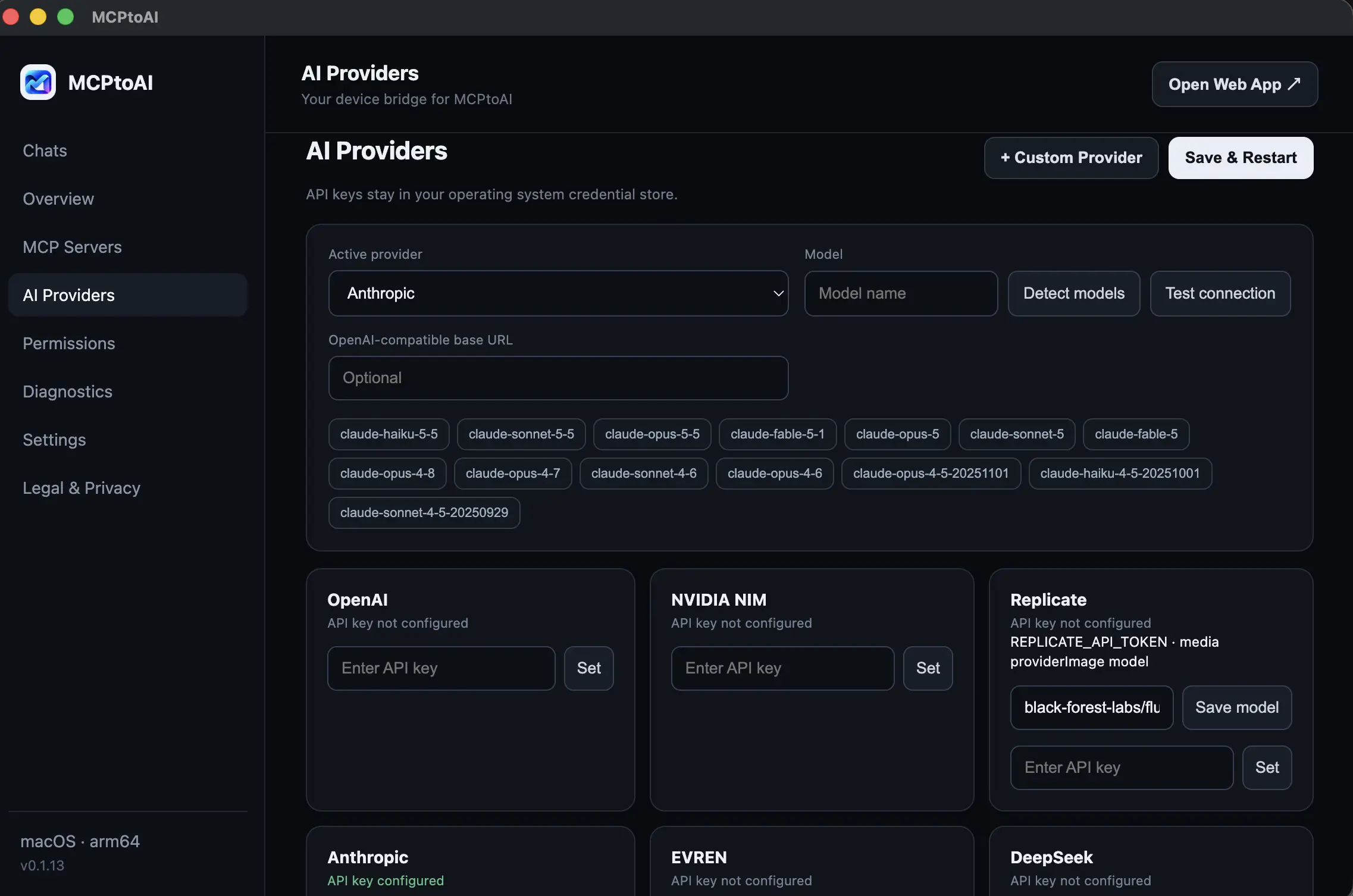
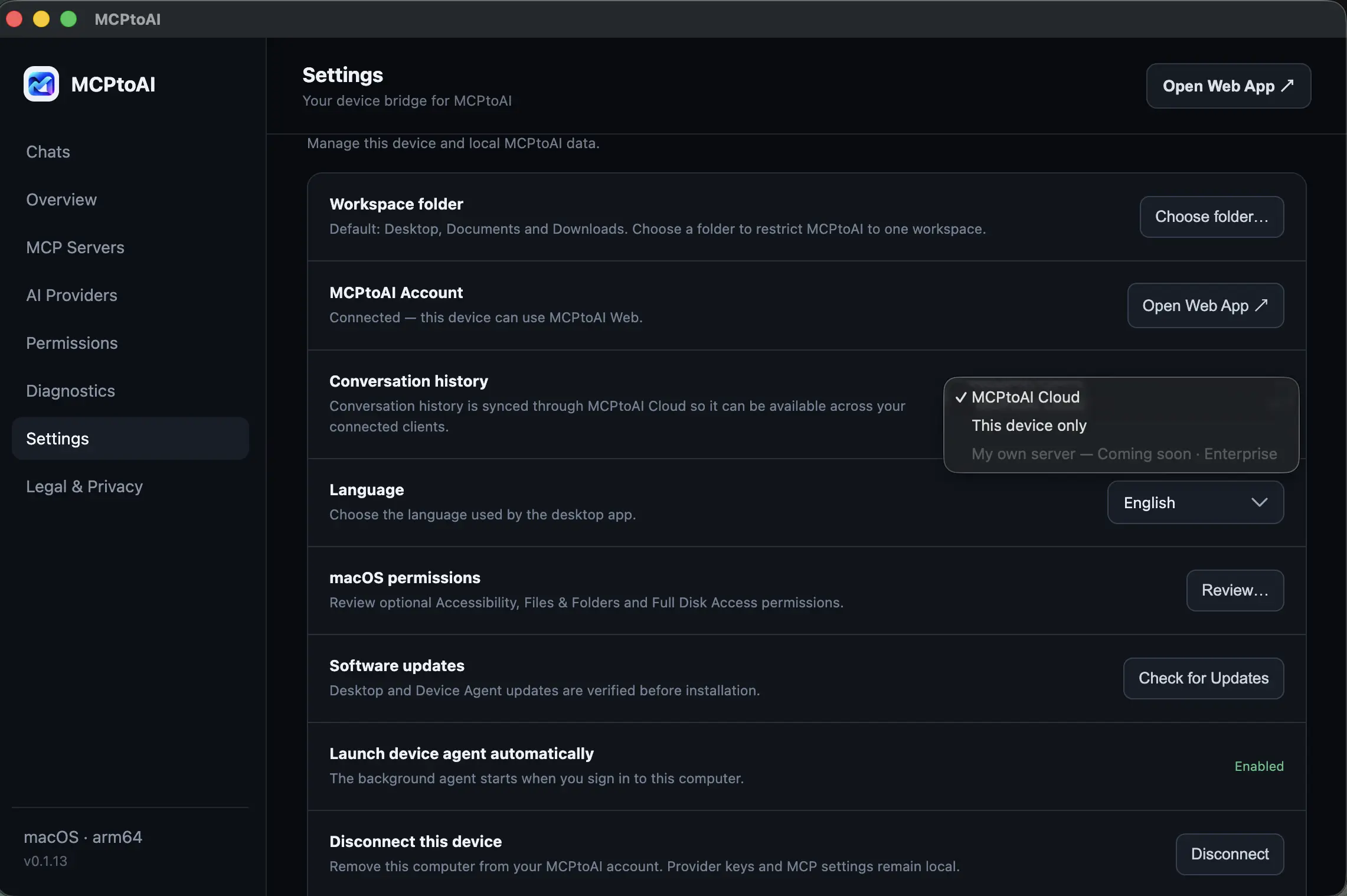
Use supported cloud providers or local models and choose whether conversation history is kept in MCPtoAI Cloud or only on the selected device.
Most AI chats stop at the conversation. MCPtoAI lets the model you choose work with your computer and connected services — under rules that you set.
Reached a usage limit, or need a model with different strengths? Choose another model and continue in the same conversation.
Ask the AI to find files, read documents or open applications on your computer — even when you are not sitting in front of it.
Add MCP servers for domains, hosting, development and more, and use their tools from the same workspace.
Set each capability to Off, Ask or Allow. High-impact actions always wait for your approval.
Provider API keys are kept in your operating system's secure credential store — never on MCPtoAI servers.
Add MCPtoAI Web to your phone's Home Screen and continue the same conversations wherever you are.
A practical AI workspace, not just a chat window. Connect your computer, supported AI providers and external tools; keep control of the actions they take.
Use the Device Agent to inspect permitted folders, read files and perform supported tasks. Terminal access is optional and controlled by device permissions.
Connect GitHub, Google Drive and compatible MCP servers. Discover available tools, then choose which the AI can use.
Inspect supported GitHub-hosted Skill packages pinned to a commit, review their files and explicitly approve installation.
Use supported cloud providers or local models, switch within a conversation and retain the available context. Model capabilities and limits vary.
Configure Off, Ask or Allow for individual tools. Provider credentials remain on the device; remote services receive data needed for approved requests.
Web messages pass through the hosted TLS relay; this is not end-to-end encryption. Choose cloud or device-only history, and review third-party tool and Skill risks.
The web app is where you work, the relay carries messages securely, and the Device Agent does the work on your computer.
Where you chat, choose models, manage MCP connections and approve actions. Works in any modern browser, including on your phone.
Passes messages between the web app and your device over encrypted connections. Every device signs its connection with its own key.
Runs in the background on your computer, managed by MCPtoAI Desktop. It holds your API keys, calls your AI provider and performs only what your permissions allow.
A few examples of what people use MCPtoAI for.
“Show me the largest files in the Downloads folder on my home Mac.”
Your Device Agent lists the folder — within the locations you have allowed — and returns the result to the conversation.
“Is example-studio.com available? Then show me the DNS records for my current domain.”
With a domain MCP server such as to4.at connected, the AI uses its tools and shows the answers in the same conversation.
“Review this project folder and suggest a refactoring plan.”
Start the analysis with one model, then switch to another to continue — without copying context into a new chat.
Connecting AI to your computer only makes sense if you stay in control. MCPtoAI keeps credentials on your device, verifies every device connection cryptographically and asks before it takes high-impact actions.
No. MCPtoAI is a workspace that connects the AI models you already use to your computer and MCP services. You bring the model; MCPtoAI provides the secure connection, the tools and the controls.
For cloud providers such as OpenAI or Anthropic, yes — you add your own key and the provider bills your account directly. Local models running in Ollama or LM Studio do not need a key.
No. Keys are stored in your operating system's credential store on your device, and requests to AI providers are made from your device.
You choose where conversation history is stored. It can be kept in MCPtoAI Cloud for cross-device access, or stored only on your selected device. When device-only history is enabled, those conversations are not stored in MCPtoAI Cloud and are available only while that device is connected.
MCPtoAI Desktop is available for macOS 13+ on Apple silicon and Windows 10+ (x64). The Linux CLI and official Docker image are also available, and MCPtoAI Web works in modern browsers including phones.
Bring the AI you prefer, connect the tools you need and stay in control of what happens on your computer.